

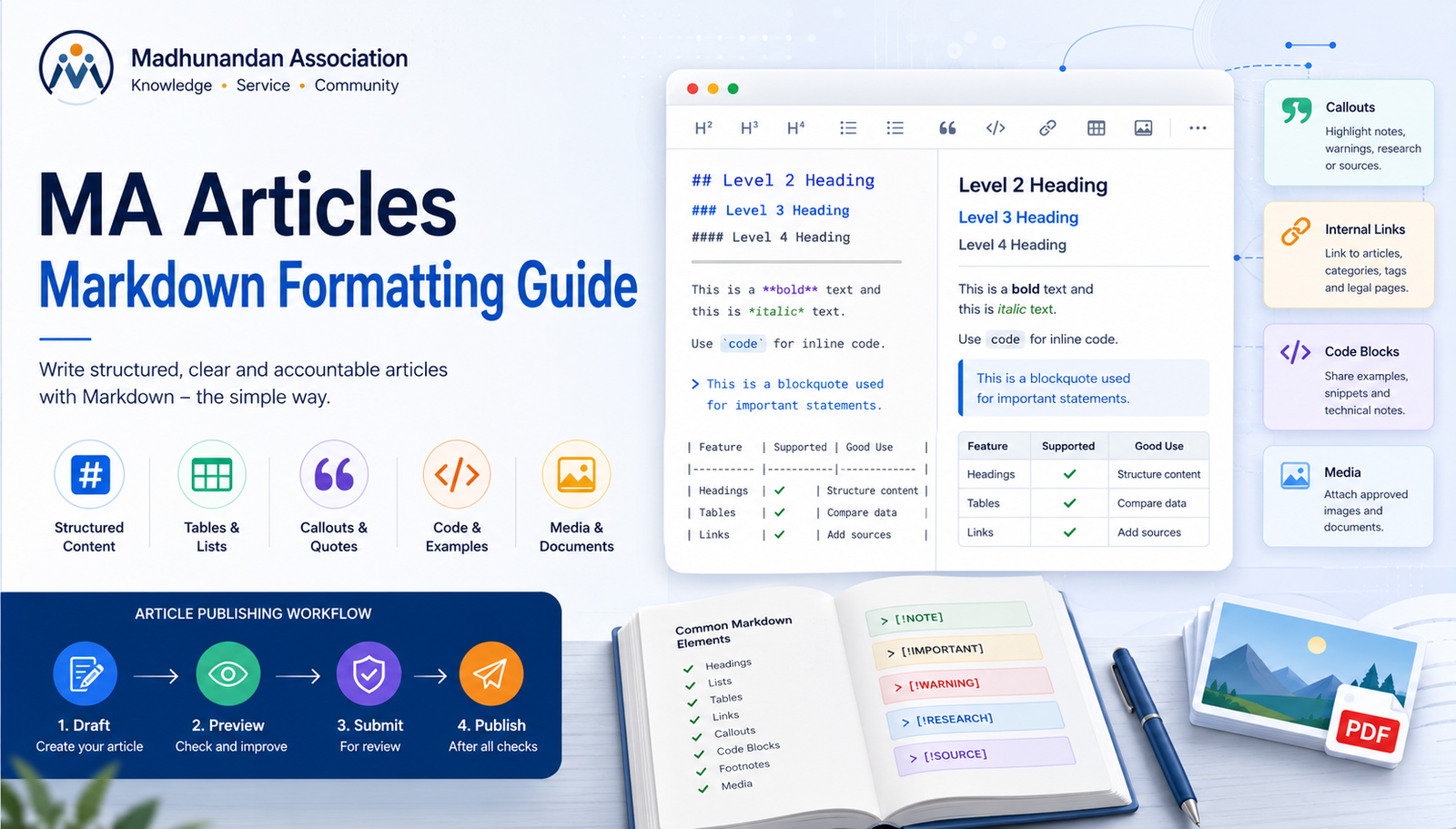
This guide explains every Markdown feature supported in MA Articles, with a clear example for each one. Use it as a hands-on reference when writing, editing, or reviewing an article body.
Suggested Article Metadata
| Field | Suggested value | Notes |
|---|---|---|
| Title | MA Articles Markdown Formatting Guide | Use the title field, not a # heading inside the body. |
| Category | Help or Knowledge | Use an admin-approved category. |
| Tags | markdown, formatting, guide, articles | Keep tags simple and searchable. |
| Public author | Organization or author display setting | Real ownership belongs to the member or admin account. |
Special Tokens Quick Reference
MA Articles supports a few system-managed tokens. Put each token exactly as shown, usually on its own line. Do not wrap these tokens in code backticks inside a real article unless you want to explain the token instead of using it.
Use this quick reference when you need the exact format:
[[toc]]creates an automatic table of contents from article body headings. Put it near the top, after a short introduction.[[glossary]]creates a glossary index from definition-list terms. Put it near the end, after your definition lists.[[articles|Text]]links to the article index. ReplaceTextwith the link label readers should see.[[legal:privacy|Text]]links to a known internal page. Use approved internal route keys for site-owned pages.[[category:slug|Text]]links to an article category. Replaceslugwith the category slug.[[tag:slug|Text]]links to an article tag. Replaceslugwith the tag slug.[[article:slug|Text]]links to another published article. Replaceslugwith the article slug.inserts an approved article image. ReplaceIDwith the uploaded image media ID.[[resource:ID|Text]]inserts an approved download link. ReplaceIDwith the uploaded resource media ID.[[download:ID|Text]]works the same asresource. Use either name.
Example using `[[toc]]`:
This guide explains how members can format article content safely.

[[toc]]

### First Section
Write the first section here.

### Second Section
Write the second section here.
The system replaces [[toc]] with links to the headings in the article body. The article title itself is not listed because it is already the page heading.
Why Markdown?
Markdown lets you write clean, readable article content using plain text symbols. The MA Articles server converts those symbols into safe, consistent page formatting without requiring HTML knowledge.
Headings
Headings help readers navigate a long article. MA Articles supports three heading levels in the article body.
How to write them:
## Level 2 - Major Section
### Level 3 - Subsection
#### Level 4 - Detail under a subsection
How they appear:
Level 2 - Major Section
Level 3 - Subsection
Level 4 - Detail under a subsection
Paragraphs and Line Breaks
Leave a blank line between two paragraphs to separate them.
Example:
This is the first paragraph. It talks about one idea.

This is the second paragraph. It starts a new idea.
Result:
This is the first paragraph. It talks about one idea.
This is the second paragraph. It starts a new idea.
For a soft line break inside the same paragraph, end the line with two spaces before pressing Enter.
Example:
This sentence is on the first line.
This sentence continues in the same paragraph, on a new line.
Result:
This sentence is on the first line.
This sentence continues in the same paragraph, on a new line.
Inline Text Formatting
Inline formatting applies style to words or phrases inside a paragraph.
| What you want | What you type | Result |
|---|---|---|
| Bold | **word** or __word__ | bold |
| Italic | *word* or _word_ | italic |
| Bold italic | ***word*** or ___word___ | bold italic |
| Strikethrough | ~~word~~ | |
| Inline code | ` word ` | word |
Examples in a sentence:
The policy is **mandatory** for all members.
Use *italic* for light emphasis on a term.
This wording is ~~outdated~~ and has been replaced.
The field name is `content_format`.
Result:
The policy is mandatory for all members.
Use italic for light emphasis on a term.
This wording is outdated and has been replaced.
The field name is content_format.
Escaped Characters
If you want to show a Markdown symbol as plain text without it being treated as formatting, put a backslash `` before it.
Example:
\*This is not italic.\*
\[This is not a link.\]
\`This is not code.\`
Result:
*This is not italic.*
[This is not a link.]
`This is not code.`
Unordered Lists
Use -, *, or + to start bullet items. All three markers work the same way.
Example:
- First item
* Second item
+ Third item
Result:
- First item
- Second item
- Third item
Ordered Lists
Use numbers followed by . or ) to create a numbered list.
Example:
1. Draft the article.
2) Preview the article.
3. Submit for review.
4. Publish after approval.
Result:
- Draft the article.
- Preview the article.
- Submit for review.
- Publish after approval.
Blockquotes
A > at the start of a line creates a blockquote. Use it to highlight a policy statement, community note, or meeting extract.
Example:
> Members are responsible for the accuracy of content they submit for publication.Result:
Members are responsible for the accuracy of content they submit for publication.
Callout Blocks
Callouts are labelled quote blocks for special types of information. Each starts with > [!LABEL].
Supported labels and their purpose:
| Label | Use for |
|---|---|
NOTE | Helpful information that does not change the main action |
IMPORTANT | Information members must read before submitting or publishing |
WARNING | Serious cautions about data, legal, or content rules |
RESEARCH | Research method, sample, limitation, or evidence quality |
SOURCE | Where a fact, quotation, image, or document came from |
Examples:
> [!NOTE]
> Use a note for helpful guidance that is good to know but not urgent.

> [!IMPORTANT]
> Members must complete the review checklist before submitting.

> [!WARNING]
> Do not include private personal data or unverified sensitive claims.

> [!RESEARCH]
> This finding is based on a survey of 120 members conducted in 2024. The sample is limited to active members.

> [!SOURCE]
> Data sourced from the 2024 MA Annual Report, published on madhunandan.org.in.
Result:
Horizontal Rules
A line of three or more dashes --- creates a horizontal divider between sections.
Example:
Last paragraph of one section.

---

First paragraph of the next section.
Result:
Last paragraph of one section.
First paragraph of the next section.
Links
MA Articles supports public URLs, internal site paths, email links, and telephone links.
Public URL with display text:
[Madhunandan Association](https://madhunandan.org.in "Official site")Result: Madhunandan Association
Internal site path:
[Articles Index](/articles/index.php)Result: Articles Index
Email link:
[contact@madhunandan.org.in](mailto:contact@madhunandan.org.in)Result: contact@madhunandan.org.in
Telephone link:
[Call the office](tel:+911234567890)Result: Call the office
Internal References
Internal references create safe, system-managed links to known pages within the Madhunandan website.
Format: [[route|Display Text]]
Use these examples:
- Articles home syntax:
[[articles|Articles Home]]
Result: Articles Home
- Legal index syntax:
[[legal|Legal Pages]]
Result: Legal Pages
- Privacy policy syntax:
[[legal:privacy|Privacy Policy]]
Result: Privacy Policy
- Terms of use syntax:
[[legal:terms|Terms of Use]]
Result: Terms of Use
- Cookie policy syntax:
[[legal:cookie|Cookie Policy]]
Result: Cookie Policy
- Category page syntax:
[[category:research|Research Category]]
Result: Research Category
- Tag page syntax:
[[tag:education|Education Tag]]
Result: Education Tag
- Specific article syntax:
[[article:sample-article|Sample Article]]
Result: Sample Article
Use internal references for any page that belongs to the Madhunandan website. Use normal links for approved external sources.
Tables
Tables work well for comparisons, summaries, timelines, and public data. Each row uses | to separate columns. The second row controls column alignment.
Alignment syntax:
| Syntax | Alignment |
|---|---|
:--- | Left |
:---: | Center |
---: | Right |
Example:
| Programme | Year | Status |
| :--- | :---: | ---: |
| Member Education Drive | 2022 | Complete |
| Community Health Survey | 2023 | Complete |
| Digital Literacy Workshop | 2024 | Ongoing |
Result:
| Programme | Year | Status |
|---|---|---|
| Member Education Drive | 2022 | Complete |
| Community Health Survey | 2023 | Complete |
| Digital Literacy Workshop | 2024 | Ongoing |
Code Blocks
Use fenced code blocks, with three backticks before and after, to show technical content. Specify the language after the opening backticks for clearer display.
Example - PHP:
Type the opening fence as three backticks followed by the language name:
```php
Then add the code lines:
$status = 'published';if ($status === 'published') { echo 'This article is live.';}
End with a closing fence:
```
Result:
$status = 'published';
if ($status === 'published') {
    echo 'This article is live.';
}
Example - HTML shown as example text, not executed:
Type the opening fence as:
```html
Then add the example HTML line:
<p>This is an example paragraph tag. It is not live markup.</p>
End with:
```
Result:
<p>This is an example paragraph tag. It is not live markup.</p>Inline Code
For short technical values, field names, tokens, or single commands, use single backticks inline.
Example:
The table of contents token is `[[toc]]`.
The content format field is called `content_format`.
Result:
The table of contents token is [[toc]].
The content format field is called content_format.
Footnotes
Footnotes add source notes without interrupting the paragraph. The reference number appears inline; the full note is collected at the bottom of the article.
How to add a footnote:
This data was published in the 2023 MA annual report.[^annual-report]
Policy compliance is a shared responsibility.[^policy-note]

[^annual-report]: MA Annual Report 2023, published on madhunandan.org.in.
[^policy-note]: Refer to the MA Content Policy for full compliance guidelines.
Result:
This data was published in the 2023 MA annual report.1
Policy compliance is a shared responsibility.2
The footnote definitions can be placed anywhere in the source. The system renders them as a numbered list at the end of the article.
Definition Lists
Definition lists work well for glossary terms, legal terms, research vocabulary, and article-specific words.
Format: Write the term on one line. Write the definition on the next line, starting with : .
Example:
Article
: A public knowledge, update, research, or guidance page managed through MA Articles.

Pending revision
: A reviewed update draft for an already published article. The public article stays unchanged until the revision is approved.

DPDP
: Digital Personal Data Protection. A privacy law context that reminds writers to minimize personal data.
Result:
- Article
- A public knowledge, update, research, or guidance page managed through MA Articles.
- Pending revision
- A reviewed update draft for an already published article. The public article stays unchanged until the revision is approved.
- DPDP
- Digital Personal Data Protection. A privacy law context that reminds writers to minimize personal data.
Abbreviations
Abbreviation definitions expand a short term automatically every time it appears in the article body. Define them once at the end of the article.
Format: *[ABBR]: Full form
Example definitions placed at end of article:
*[MA]: Madhunandan Association
*[DPDP]: Digital Personal Data Protection
*[FAQ]: Frequently Asked Questions
Once defined, every occurrence of MA, DPDP, and FAQ in the article can show the full form as a tooltip.
Table of Contents
The [[toc]] token generates a linked table of contents from all the body headings in the article. Place it near the top of the body, after any introductory paragraph.
How to use it correctly:
- Put
[[toc]]on its own line. - Place it after a short opening paragraph, not before the article begins.
- Use body headings like
##,###, and####after the token. - Use it once in an article. One table of contents is enough for readers.
- Do not put it inside a code block, table, list item, or blockquote.
Example:
This article explains the full article workflow.

[[toc]]

### Drafting
...
### Review
...
The system replaces [[toc]] with an auto-generated list of links to each heading.
Common mistake:
`[[toc]]`Writing the token inside backticks shows it as plain text. Use backticks only when you are teaching someone about the token, as this guide does.
Glossary Index
The [[glossary]] token generates a summary of all definition-list terms in the article. Place it at the end of the article body.
Example:
[[glossary]]The system collects all terms from definition lists in the article and renders them as a compact glossary index.
Media References: Article Images
Images must be uploaded through the article media upload flow first. After upload and approval, copy the media ID into the Markdown.
Format: 
Example:
Replace 5 with the actual approved media ID from the upload flow.
Downloadable Resource Blocks
Downloadable files must also be uploaded through the media or resource upload flow first.
Format: [[resource:ID|Link text]] or [[download:ID|Link text]]
Examples:
[[resource:4|Download the 2024 MA Annual Report]]

[[download:7|Download the Member Handbook PDF]]
Replace 4 and 7 with actual approved resource media IDs.
Both resource and download are supported aliases and work identically.
Full Formatting Example
The block below combines multiple features in one short article section, so you can see how they work together.
### Community Health Survey 2024

MA conducted a member health survey in early 2024.[^survey-note]

**Key findings:**

| Area | Respondents | Positive rating |
| :--- | :---: | ---: |
| Awareness of health resources | 214 | 78% |
| Access to local services | 214 | 61% |
| Satisfaction with MA support | 214 | 83% |

> [!RESEARCH]
> Sample size: 214 active members across 6 districts. Margin of error: +/-4%. Self-reported data.

> [!SOURCE]
> MA Community Health Survey Report, April 2024. Available via the articles archive.

Download the full report:

[[resource:12|Download MA Community Health Survey 2024]]

[^survey-note]: Survey conducted February-March 2024 by the MA Research and Welfare Committee.
Safe Publishing Reminder
Before submitting any article, confirm the following.
| Check | What to confirm |
|---|---|
| Personal data | No private member names, contact details, or identifiers are published without consent |
| Media | All images and downloads are uploaded through the approved flow with source and copyright confirmed |
| Sources | All facts, statistics, and quotations have a footnote or source callout |
| Sensitive claims | No unverified medical, financial, legal, or accusatory content |
| Review workflow | Article submitted for admin or reviewer approval before publication |